Hamster Ball Battle: Remix
Created by Nathan Williams (NathisGreen) & Liam Bower (Liam.Bower)
Intro #
Hamster Ball Battle: Remix is a 12 player party game based around competing in various mini games in giant hamster balls. The Hamster Ball Battle: Remix template is a framework designed to make it easy for people to extend by adding new arenas to the current Sumo game mode or by adding entire new modes to the world.
This remix was used as the base for the live world Hamster Ball Battle that you can try out here: https://horizon.meta.com/world/10162325368863937/?hwsh=GMLf284cZ8
There are different ways you can remix this project, but it breaks down largely into two different types. You can reskin this world and create your own arenas, without having to touch any code. This is a beginner friendly remix that offers a lot of possibility! However if you know your way around Typescript then this framework can be easily extended so that multiple game modes can exist within this world.
To get started, clone the Hamster Ball Battle:Remix world which can be found here: https://horizon.meta.com/world/10162407858713937/?hwsh=zkB6fCwBn1&locale=en_GB
Reskinning & Adding new arenas (Beginner) #
To start, lets look at how to reskin the world to match your own theme. The world assets are broken into three different categories:
- Lobby Assets - The assets that make up the lobby area i.e the hamster cage.
- Arena Background Assets - The props around the arenas including sky, castle and castle walls.
- Arena Assets - The assets that make up the actual arenas and collapse while the game is playing.
You can find the Lobby Assets under the 'LobbyArea' folder in the top level of the hierarchy:
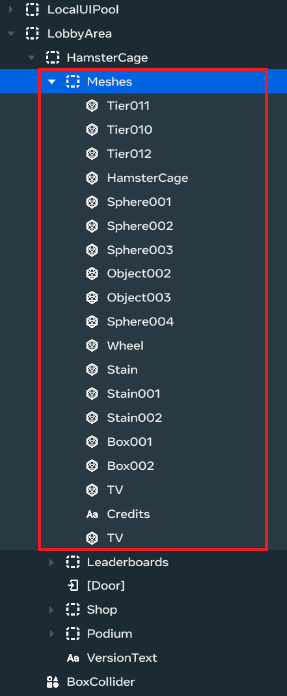
You can delete everything inside the meshes folder and replace with your own meshes. The other entities under the HamsterCage folder are the actual gizmos and components that handle the functionality for the lobby such as the shop and the podium. You can simply reposition these to match up with your lobby assets.
The assets that exist in the world around the arenas can be found under the 'ArenaBackgroundAssets' folder in the top level of the hierarchy:
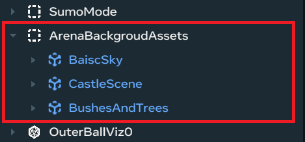
Like before you can delete everything inside here and replace with your own assets.
To replace or create your own Sumo Arena requires working with a few prebuilt components that let you configure how an arena should work. Sumo arenas are typically a series of meshes that combine together to create one arena. Each mesh in the arena, often referred to as a tier, is one section of the arena that can break away and collapse on its own. This is how the arenas shrink over time during gameplay. The art of creating a fun arena is defining how and when each section should collapse.
All arenas can be found under SumoMode/Arenas:
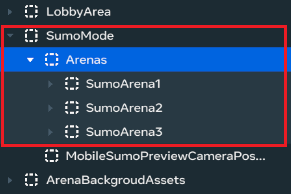
Every arena parented under this 'Arenas' folder will automatically be added to the game and will start spawning in game. No hookups required!
Pro tip: When developing a new arena it can be useful to unparent all the other arenas (just place them somewhere else in the hierarchy) as this will force your one to always spawn, making it easy to test quickly.
On the top level of each arena (e.g SumoArena1, SumoArena2, SumoArena3) there is a component attached called scSumoArena. This component links together all the various pieces of an arena and offers some configuration options:
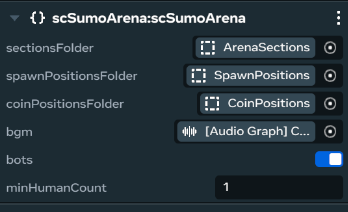
Lets expand SumoArena1 and look at what an arena contains. This helps it becomes more clear what is being linked on scSumoArena.
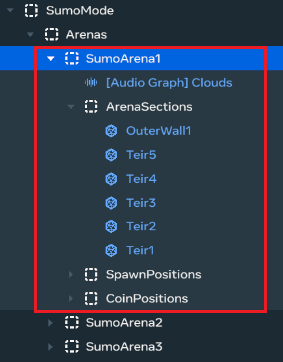
- sectionsFolder - A game object that has all arena sections as children to it.
- spawnPositionsFolder - A game object that has SpawnPointGizmos as children to it. These are the positions players will spawn in the arena. Make sure there are 12!
- coinPositionsFolder - A game object that has empty game object as children to it. The position of these empty objects is where coins will spawn in the arena. You can have as many as you like.
- bgm - A reference to an AudioGizmo. This will play as the background music while the arena is active.
- bots - Controls if bots should spawn in this arena. If set to false there will be no bots.
- minHumanCount - The minimum amount of humans that must be in the world for this arena to spawn. e.g setting it to 4 means the arena would not be choosen if there were only 3 or less players in the world.
The easiest way to make your own arena would be to copy one of the existing ones, delete out the children in ArenaSections and replace them with your meshes. Then rearrange the SpawnGizmos and coin positions inside the SpawnPositions and CoinPositions folders.
Each Arena section needs to have the scSumoArenaSection script attached to it. This script has various values that can be set to control how long each section stays around for and how it collapses out. The way collapsing works is the first child in the ArenaSections folder will start as the active arena section (i.e the one highest up in the hierarchy). Once it has completely collapsed the next child will be selected as the active section until there are no more sections left. So by ordering your sections within this folder you can control the order in which they collapse.
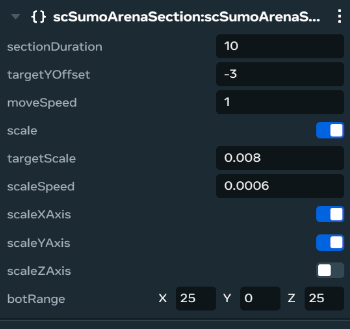
- sectionDuration - How many seconds the arena will wait on this section before starting to collapse out.
- targetYOffset - How far on the y axis this piece should move before its considered out of view. negative values make it move down, positive makes it move up.
- scale - After reaching targetYOffset, should this piece also scale. If true the piece will scale. If false the piece will be considered fully collapsed and the next section will be activated.
- targetScale - Only used if scale is true. The target scale this piece needs to reach.
- scaleSpeed - Only used if scale is true. The speed at which this piece should scale towards targetScale.
- scaleXAxis - Only used if scale is true. If true the section will scale on the x axis.
- scaleYAxis - Only used if scale is true. If true the section will scale on the y axis.
- scaleZAxis - Only used if scale is true. If true the section will scale on the z axis.
- botRange - The range bots should use when deciding positions to use while this section is active. See scBotController section for more information.
And there you have it. By setting these values on each arena section and ordering them appropriately within the ArenaSections folder you can design entire new arenas. If you want to add bouncy obstacles to your arena see the scBouncePillar section of the docs for information on how to set those up.
How to add new game modes (Advanced) #
A good party game is lots of party games! Thats what we believed when creating the Hamster Ball Battle framework, so we designed the entire framework around the idea of it eventually extending into multiple games that change every round. Sumo mode is just our example mode, we want to extend it into other modes such as racing, king of the hill, kaplunk etc. The modular design of the framework makes this very easy to do!
We set the framework up with a base abstract class called scModeManager which can be extended from to create a class to define your own custom mode logic. You can see how we did this with the scSumoManager class. The interface you get from scModeManager contains the following key methods:
export abstract class scModeManager extends hz.Component{

protected m_FirstPlaceWinner: hz.Player | undefined = undefined;
protected m_SecondPlaceWinner: hz.Player | undefined = undefined;
protected m_ThirdPlaceWinner: hz.Player | undefined = undefined;

/** Called when the lobby chooses this mode */
public InitMode(){}

/** Called when the count down timer in lobby is done and players are starting to play */
public StartMode(players:hz.Player[]){}

/** Called every frame while the mode is active */
public UpdateMode(deltaTime: number){}

public CleanupMode(){}
}
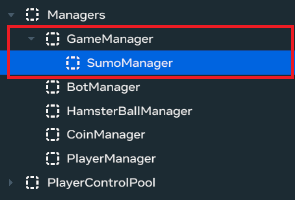
When you create a new mode controller, extend from this abstract class, attach it to an empty gameobject in the world and parent it under the GameManager game object in the world:
Every mode controller needs to register itself with the GameManager in preStart in the following way:
preStart()
{
 super.preStart();
 this.m_GameManager?.RegisterModeManager(this);
}
Once registered with the GameManager the mode controller will have a random chance of being selected as the next mode each time a mode completes. The life cycle of a mode is as follows:
- World Startup- The GameManager randomly chooses the first mode and calls InitMode() on the controller.
- Count Down timer hits 0 - Once the count down timer in the lobby hits 0 the GameManager Calls StartMode() passing in all valid players to the mode (i.e players who arn't coined out etc).
- Mode is Active - While the mode is active the UpdateMode(deltaTime) method will be called every frame.
- Current mode calls SetModeComplete() on GameManager once completed - The current mode has CleanupMode() called on it. A new mode controller is selected and InitMode() is called on it. The count down timer begins.
The Sumo mode controller can act as a example of how to setup your own logic within a mode, but that really comes down to how your mode works. The GameManager has some handy methods like ReturnPlayerToLobby() to put players back in the lobby. Also be sure your ModeManager sets the m_FirstPlaceWinner, m_SecondPlaceWinner and m_ThirdPlaceWinner players to the appropriate players during your mode, so they get their spot on the podium at the end of the round, which will happen when you call SetModeComplete() on the GameManager from inside your mode manager when it has completed.
↑ back to topClasses #
The framework organizes its logic into distinct classes, each designed with a single responsibility. This section provides documentation for these classes, detailing their roles within the framework and offering guidance on how to use them effectively.
scCommon #
scCommon holds a number of different things that are used across classes in the projects. This includes tuneable values, network events, enums and helper methods. Some values worth highlighting are:
- const OswaldFont:string- The font used across the game when text gizmos are set dynamically.
- const TimeBetweenRounds:number- How many seconds there are between rounds in the lobby.
- const PlayersInRound:number- The number of players in each round. N.B If you increase you will need to add more SpawnPointGizmos to each arena
- const TargetBotCount:number- The number of bots added in each round. N.B If you increase you will need to add more Bot Spawners to the bot pool
- const DashDuration- How long the dash abilit stays active, in seconds.
- const DashCoolDownLength:number- How long the dash takes to recharge in milliseconds.
scGameManager #
The Game Manager handles the high level state of the world. It can be in one of three states controlled by the Lobby State enum:
export enum LobbyState
{
    Lobby,
    LobbyCountDown,
    ModeActive
}
The Lobby state is the default state the world begins in at start up. The world is in this state until a player joins the world, at which point it changes to the LobbyCountDown state. This state represents when the players are in the lobby area and the count down timer is showing how long until the next round begins. The ModeActive state is when a game mode is currently active and being played.
The Game Manager also controls choosing which mode is active, and running the lifecycle of ModeManagers as seen in the Adding new game modes (Advanced) section.
scModeManager #
See Adding new game modes (Advanced) section.
scSumoModeManager #
The SumoModeManager handles the logic during the Sumo mode. It updates the active arena sections and handles controlling the collapsing logic. As well as spawning coins into the arena. Each time it is acitvated it chooses a random arena to use, with logic that avoids the same arena from being choose twice in a row.
scSumoArena #
See Reskinning & Adding new arenas (Beginner) section.
scSumoArenaSection #
See Reskinning & Adding new arenas (Beginner) section.
scBallController #
The BallController class is a base abstract class that both scPlayerController and scBotController extend from. It contains shared logic to do with manipulating and moving the PhysicsBall entity (the hamster ball) that players/bots control. It also contains the logic for using abilities such as Dash, so that the implementation can be shared across both controller types.
There are two modes a ball controller can be in, as directed by the PlayerControlMode enum.
export enum PlayerControlMode
{
    NormalLocomotion,
    BallMode
}
When in NormalLocomotion the player is controlling their avatar directly (bots do not use this mode), this is used when in the lobby. When in BallMode the players inputs are instead being used to add force to the ball entity they have assigned to them. This requires using Custom Player Movement in the world.
scPlayerController #
The PlayerController is the main script that controls player movement. It is a local script and exists within a scLocalPool that assigns one PlayerController to every player when they enter the world and returns it to the pool when they leave. It also contains reference to the LocalUI that this player will be using to display personal information to this player. It extends from scBallController and controls handling player input and passing it into the base class to control the ball.
scBotController #
The BotController is the script that controls the brain of each individual bot. The logic behind bots is very simple. At random intervals the bot chooses a new random position within a certain range. This range is defined on the scSumoArenaSection piece, as a property named botRange. All arenas all placed in the world with their center being at (0,0,0). This is important for bots to work. In SumoArenaSections you define a range such as (5,0,5). This means the bot will choose random positions between x -5,5 and z -5,5.
Once they choose a position they will set their direction directly to that position and pass that as their input to the base scBallController class to try and move to that position. When a bot gets hit with a dash they will update their target range to be 0,0,0 for a short period after the dash to try and recover, by essentially just homing into the center of the arena.
While this logic works on basic arenas, it has flaws. If there are gaps in arenas or complex geometry the bots will not be able to navigate around these, as they do not currently use path finding. It would be possible to add path finding to the bots though if required. However you do have the option to turn bots off on a per arena basis, by toggling the bots property on scSumoArena. If you are turning the bots off, or have an arena they can't navigate well, its recommended to increase the minHumanCount on the scSumoArena script to ensure it is still a fun gameplay experience.
scBotManager #
The BotManager handles spawning and despawning bots, and controls a pool of bots. The idea behind the BotManager is to always try and maintain 10 players in the game, regardless of how many human players are in the lobby. 10 is choosen as this leaves 2 slots open in the world for other human players to still be able to join. When a player joins the world one bot will be despawned so the count maintains 10, until there are 10 human players, at which point there will be no bots.
scBouncePillar #
When this class is attached to a GameObject it will handle a spring animation when collided with by a ball. N.BThis class does not actually make a GameObject bouncy. It just makes it animate when collided. To make something that the balls bounce off you simply tag them with the following game play tags:
- BallManipulator
- Bounce
The BallManipulator tag is required for this script to detect collisions with the balls. The Bounce tag is what actually makes it bouncy. For the actual logic on how things bounce when using the Bounce tag see scHamsterBall.
N.B Depending on how your model is imported into Horizon, and which axis is up, you might need to adjust this line in scBouncePillar:
 //Apply squash (adjust axes to your import)
 //Change these axis if your model has a different up axis
 const sx = this.m_BaseScale.x  * this.m_Squash;
 const sy = this.m_BaseScale.y * this.m_Squash;
 const sz = this.m_BaseScale.z;
By default its animating the x and y axis to do the squish effect and not changing the Z. By changing which axis get multiplied by this.m_Squash you can adjust the animation to your own models orientation.
scHamsterBall #
The HamsterBall class handles the bouncing and dash physics of the hamster balls. Each hamster ball is transferred locally to their owner (or stays the server player if it is a bot). This script then detects collisions locally and applys the appropriate force to itself. It contains the logic for ball/ball collisions and ball/Bounce tagged object collisions.
The only aspect of the physics that doesn't happen locally is the dash ability. If a ball detects a collision with another ball while its own players dash is activated, it will send a network command to the other player to apply the dash force to them.
scHamsterBallManager #
The HamsterBallManager is a wrapper around the scLocalPool used for the hamster ball entities. It contains a few useful lookup dictionaries and collections to reference balls from.
scLocalPool #
A local Pool is a pool for objects who owernship get transferred locally to players. The pool will handle keeping track of which player has which entity assigned to and releasing them back into the pool when a player leaves.
scCrown #
The Crown class handles the logic for the crown that appears over the winner of the previous round. It has two modes for the two different places it show. Player mode means its showing above the player avatar in the lobby. Ball mode means its showing above the ball of the winner during the next round.
scBuyAbilityButton #
This script attaches to a grabbable entity, and when that entity is grabbed, will attempt to buy a shop item. Its properties include:
- ppvString- Which persistent player value should be updated when succesfully bought. 0 = not purchased. 1 = has been purchased
- price- How many coins the player must have to buy this shop item. The coins will be consumed on succesful purchase.
- activateSFX- A reference to an audio gizmo to play when a purchase is succesful (not required)